
Can't create a full disk image of my fresh windows install. Please help
Ok. So I'm creating this new topic, because being unable to restore my previous system, I reinstalled everything manually.
But now I would like to save an image of my system, the right way, so next time I can effectively use my backup file to restore my system as it were before any problem.
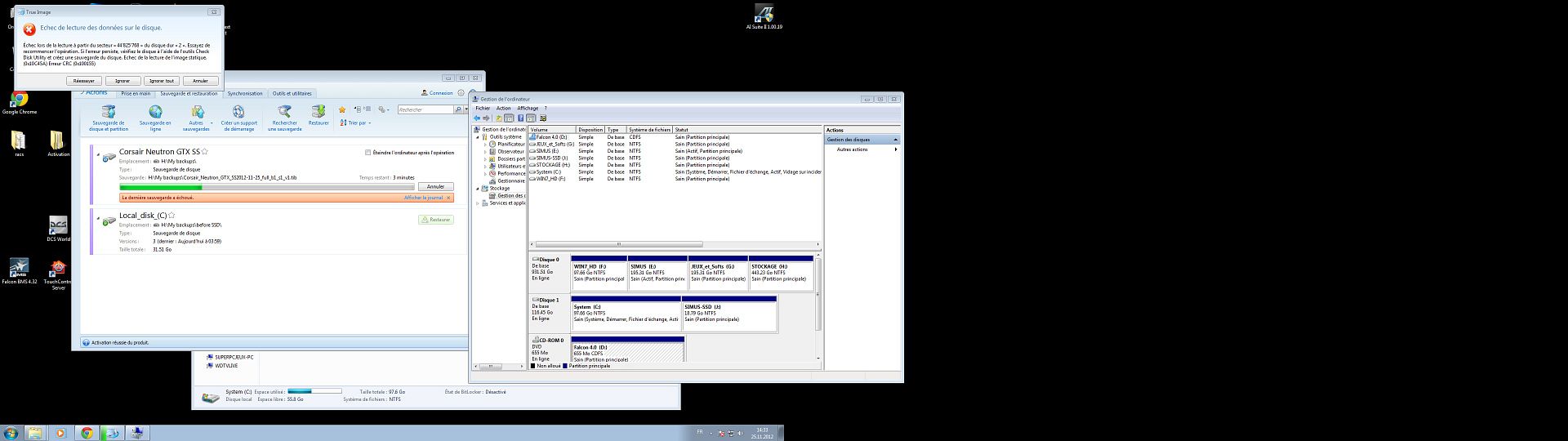
I tried making a full disk backup (in disk mode), and here is the error message I get :
http://i1207.photobucket.com/albums/bb470/Shungito/bugACIH2013_zps94870…
I want to make an image of my disk which host the c: partition, and the j: partition.
It's an SSD disk, with a main 100gb partition for c: and 20gb partition for j:
Do you guys understand why I get this error message ? Why is it telling me about disk 2 when only disk 0 and disk 1 are present on my system ?
I really need your help gents, as this is the 2nd time I purchase this software, and for a reason or another, it has been pretty useless for me. Of course, it's also my fault, for not knowing how to do it properly, but...
Can you please explain me how to make a SAFE backup of my whole "Disque 1" SSD drive ? Wether in disk or partition mode, I don't care. I just want to be able to get my computer working again if I had a crash or something, and find it again as it were before the problem occured
Thanks a lot !

- Log in to post comments

Check disk for errors..
You mean with the windows tool ?
Can I do that safely on a SSD ? I've heard defrags are out of the question for example.
- Log in to post comments
God damnit.. I launched disk check. And after rebooting my disk is checked... Up to 15% and step 4 on 5...
Then it stops, and I get a blue screen ... Every time it reboots and starts another disk check..
It says I can interrupt it with a key press before it start, but touching my keyboard doesn't do nothing... And I am inside this fucking loop forever..
I swear to god, this true image software is really driving me crazy...
Now I am facing loosing everything again,.. A full day lost..
- Log in to post comments

Patrick,
you can safely run chkdsk on an SSD. Use the /R parameter for the check, or check the 2 boxes when you launch it from the disk properties in Windows.
The error that you see is definitely coming from a disk error, and has not been caused by Acronis.
The fact that the disk check doesn't complete is pointing at some hardware issues or some memory issues. This is not an issue caused or related to Acronis.
You should be able to boot your computer on the Windows installation DVD and run chkdsk /R from there, or boot from a disk diagnostics CD that you might find from your disk manufacturer's web site.
- Log in to post comments
I'm also leaning toward a SSD hardware problem.. First this disk crashed 2 days after a successful migration, and now this..
I am wondering if this drive isn't somehow fucked up...
I have booted from a win7 install I had on the older hard drive, and I am now running a chkdsk from there on said drive.
It was very very slow around the 18375 file and for about 10 files, and now it's going again.. But from time to time it really slows down..
I'll try to push that chkdsk till the end, and hopefully be able to boot again from that disk..
But if after that, I am still unable to make an acronis true image backup because the disk is said to have a problem, I'm gonna bring it back to where I bought it a week ago, and ask for an exchange for a new one.
Ps: I am sorry. I never meant to say acronis true image was at fault.. It's just that for 3 days, each time I needed is software, it always failed on me... Hopefully, this is all linked to my mistakes, and a faulty hardware.
- Log in to post comments
Damnit.. Finally.
I did go through the chkdsk on the ssd from the other win 7 boot, and apparently it fixed the errors. I was en able to boot on my SSD drive again, and from there I was able to run acronis true image 2013 and finally create a full disk image of my SSD drive.
:)
Now I have a question.. My c: partition is about 42gb over 100gb, and the J: partition is about 10 gb over 18gb...
So actually, my datas are about 52gb over a 120gb SSD drive..
But the tib image I created for this full drive backup of this SSD is "only" 24.4gb.. Is that even possible ?
- Log in to post comments
The compression rate that your seeing is about right. On my disk (an SSD), I have 69GB of data compressed into a 23GB image.
PS: check that your SSD is aligned. Launch msinfo32.exe, look under components, hardware, disks. Each partition offset should be divisible by 4096.
- Log in to post comments

Yep, that sounds right. ATI uses compression. For an average set of user data and system files, IIRC I think it compresses around 60%.
My C: partition is about 25 GB, and its .tib archives at highest compression end up about 8 GB.
When I image my entire drive, excluding music, it's around 36 GB and the .tib archive ends up about 14 GB.
When I image my entire drive, including music, it does't compress much as my music is mostly already-compressed FLAC.
- Log in to post comments
I understand.
When I create an image of my whole disk, should I select the "sector by sector" option ?
What's the best way to save that disk image for me to get it back exactly as it was , if I have a hardware failure and that I replace the SSD !?
- Log in to post comments
No, do not select the sector by sector option.
Make sure all partitions on the SSD are included in the disk and partition backup.
After you have created your backup, create your Acronis recovery CD. Boot your computer on it and recover a couple files from the backup you just created.
- Log in to post comments
"and recover a couple files from the backup you just created"
Wat do you mean ?
What I would like to be able to do is to restore the whole system installed on the SSD with the image of the disk I just created. I hope it's possible.
I just want to make sure that I create the image correctly
Do I need to create two different backup ? One in disk mode, and the other one in partition mode ?
What I'd like to backup is my SSD drive, which is partitioned in the main partition (c: of 100gb) and a secondary partition (j: 18gb).
I want to get that back and working with true image, should everything bad happen to my disk, or my system.
- Log in to post comments

Patrick, if you make a complete disk image (no sector by sector required) your image will contain both your 'C' and 'J' partition as well as the MBR of the disk.
Then make the recovery CD and ensure that it will boot your system and see all your drives. If you wish to make a further check that th eimage you have made is OK, you can, from the Recovery CD change the 'view' so you can see the indiviudal partitions that make up your complete disk image, from here you can recover a single file if you want to prove that everything is working.
In other words make the complete disk image, at a later stage this will allows you to recover the complete disk if you need to or you will be able to recover both your partitions separately. For example something drastic might happen to your 'J' partition, you would from a complete disk image be able to recover just the 'j' partition if that was all that was required.
Note from within Windows it would be a good idea if you gave both your partitions names (labels in Microsoft speak), this is because the recovery environment uses Linux and drive letters will often appear in a different order to when booted from Windows, drive names on the other hand never change. this avoids confusion when trying to work out what disk or partition is which.
- Log in to post comments
Excellent. I'll do that today. Thank you for your answers.
This forum has really been helpful, and I thank all of you for the assistance. Much appreciated.
My drive are labelled already. :)
- Log in to post comments
Pat L wrote:The compression rate that your seeing is about right. On my disk (an SSD), I have 69GB of data compressed into a 23GB image.PS: check that your SSD is aligned. Launch msinfo32.exe, look under components, hardware, disks. Each partition offset should be divisible by 4096.
Checked. They seemed aligned:
Offset partition #0 is : 1048576
Offset partition #1 is : 104858648576
Thanks
- Log in to post comments